

Blender, like any large software, has a large number of preferences to make your life easier. However this may seem daunting at first so I will break down the most useful preferences and options to help you going forward.
Setting Up Your Interface Defaults #
Defaults in Blender refer to the pre-set configurations and settings that the software uses when it’s first opened or when a new project is started. This can be very useful if you regularly work on similar projects and always use the same workflow. You can create a default which Blender will always use when it starts up.
One of the more useful defaults is choosing the startup file that Blender will use every time it starts. This means you can create your own layout, your own scene and world and every time you start Blender it will load this file!
Here is how to create a default Blender startup file.
- Firstly start Blender for the first time and create your desired layout – Please check the User Interface section for understand how to edit the windows.
We will go from this: To this:
 - Once we have edited it how we liked, in this case we removed the cube, camera and light and we extended a window and made it ready for shader editing
- Now that is done, we go to File>Defaults>Save Startup File.
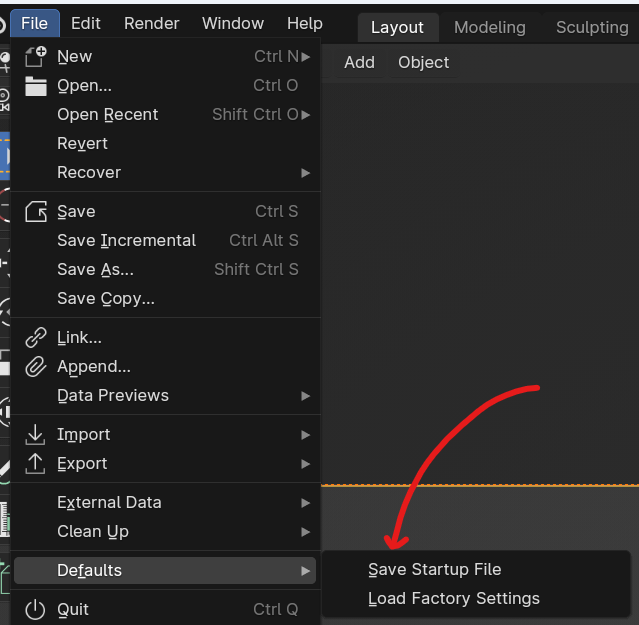 Defaults>Save Startup File”>
 - Now if we restart Blender, it will always open this as the base file.
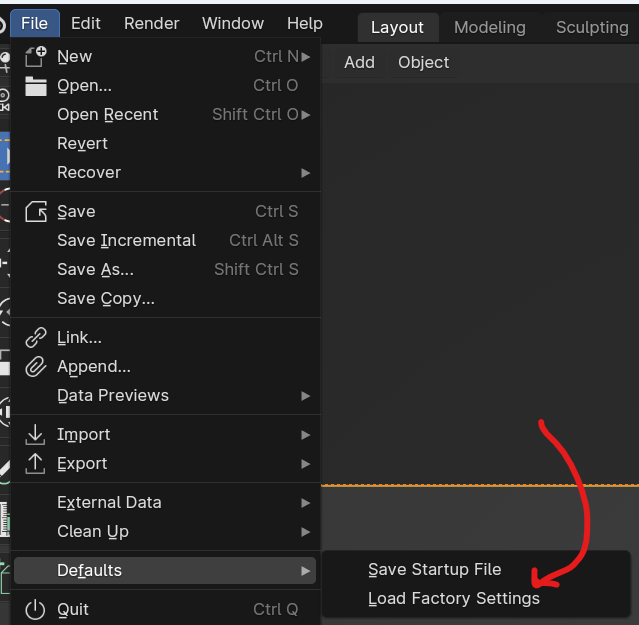
- We can remove this and go back to the default by clicking File>Defaults>Load Factory Settings
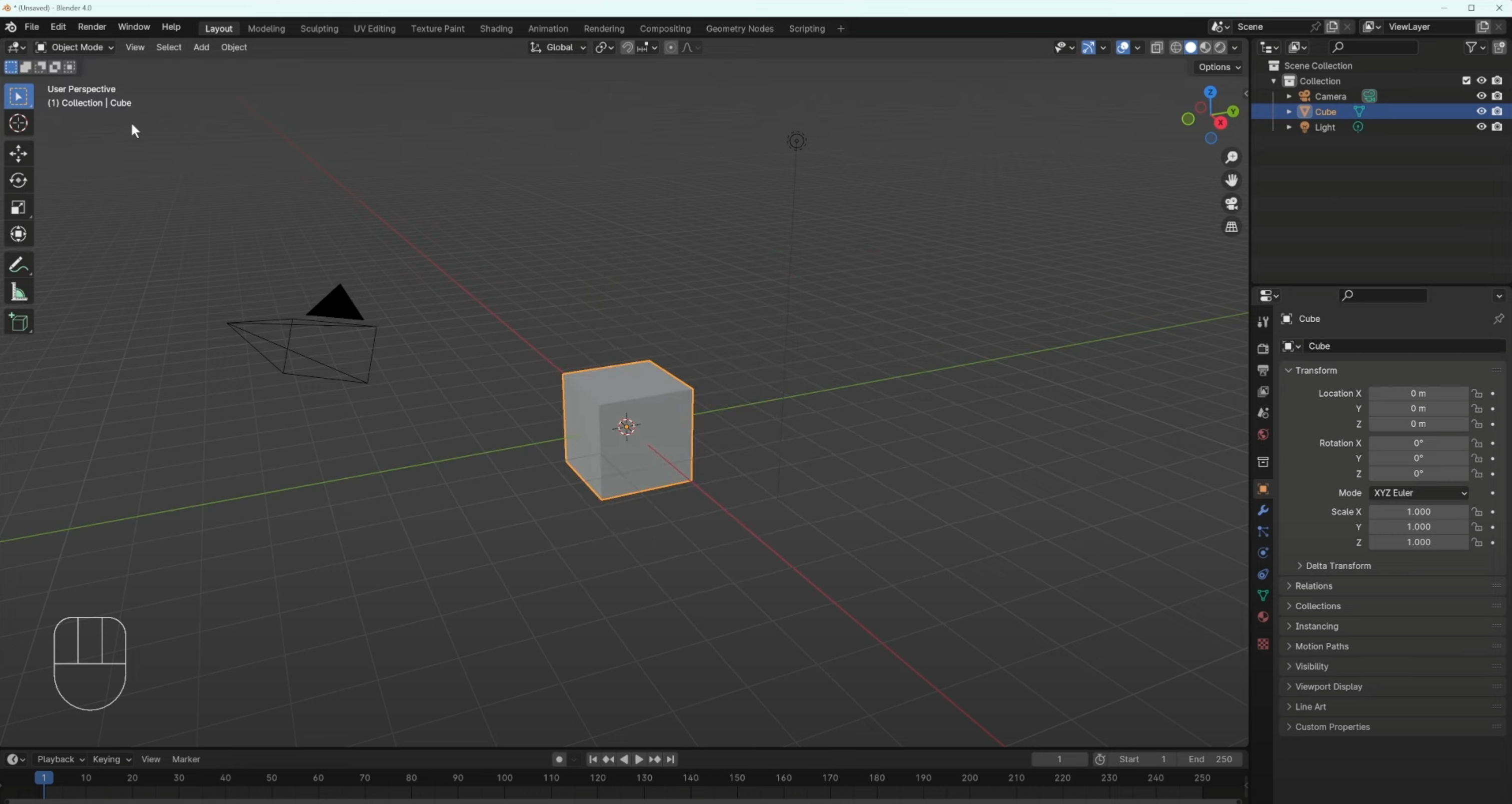 To this: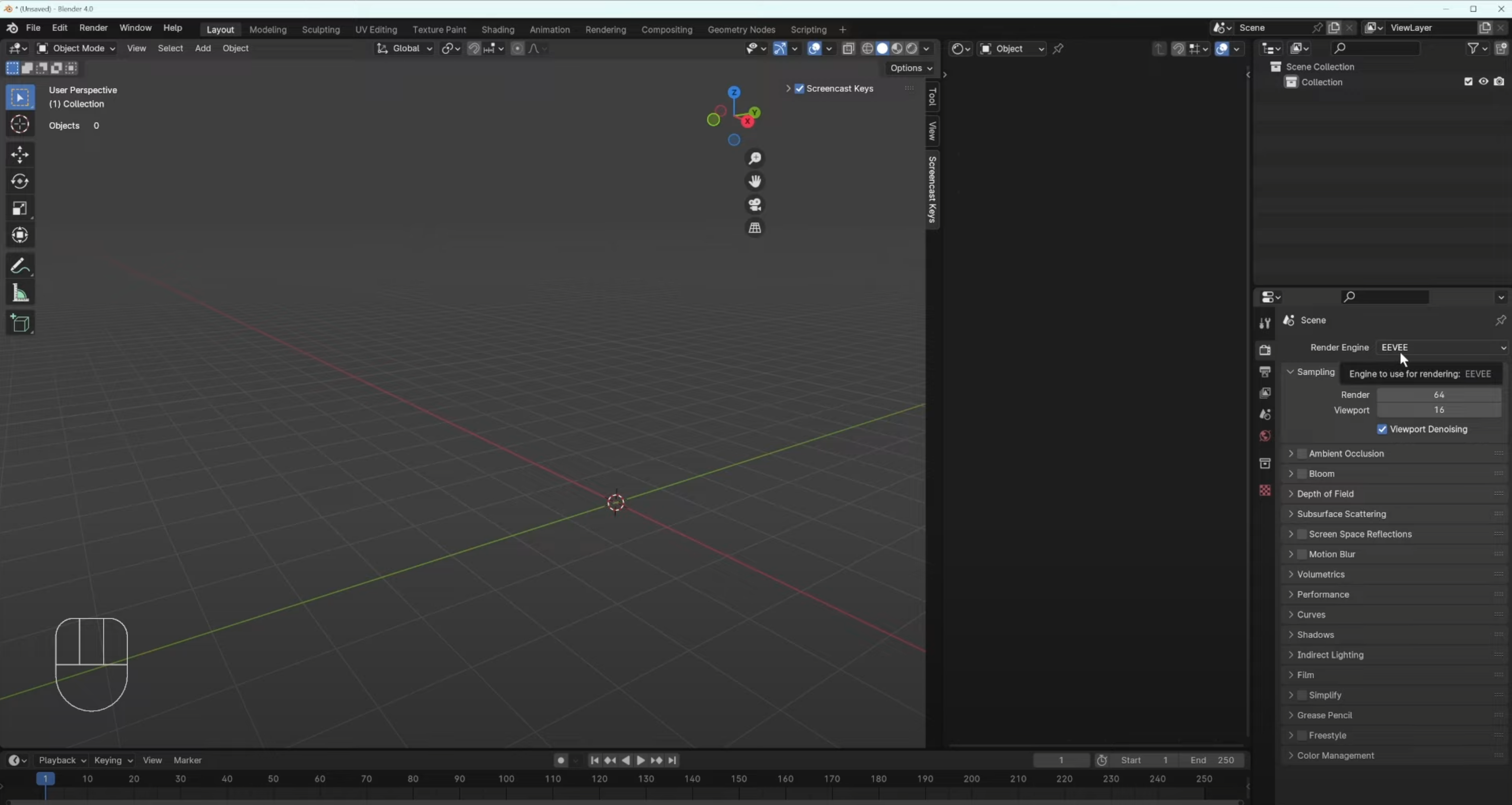
Customizing Blender Language Settings #
Setting up the correct language inside of Blender can be very important for learning. If you cannot read what you are pressing then how can you work effectively?
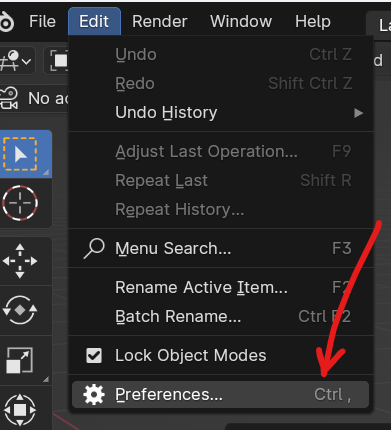
- To select your desired language please go to Edit>Preferences
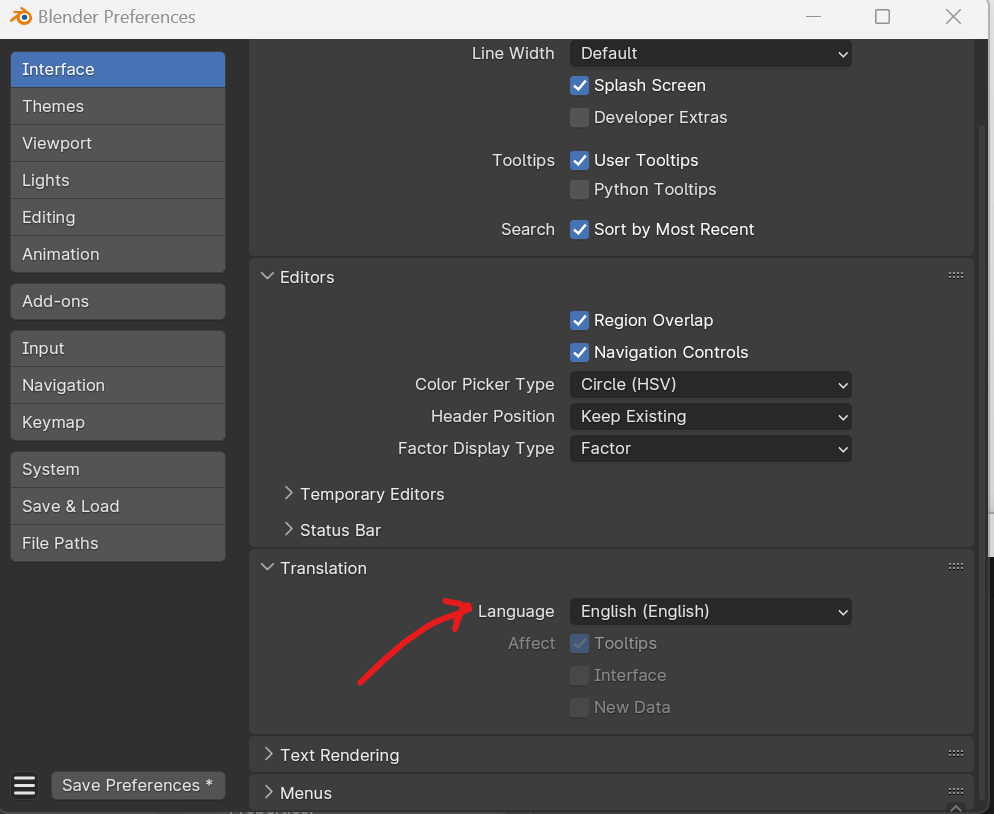
- Then Navigate to Interface>Translation
 Translation”>
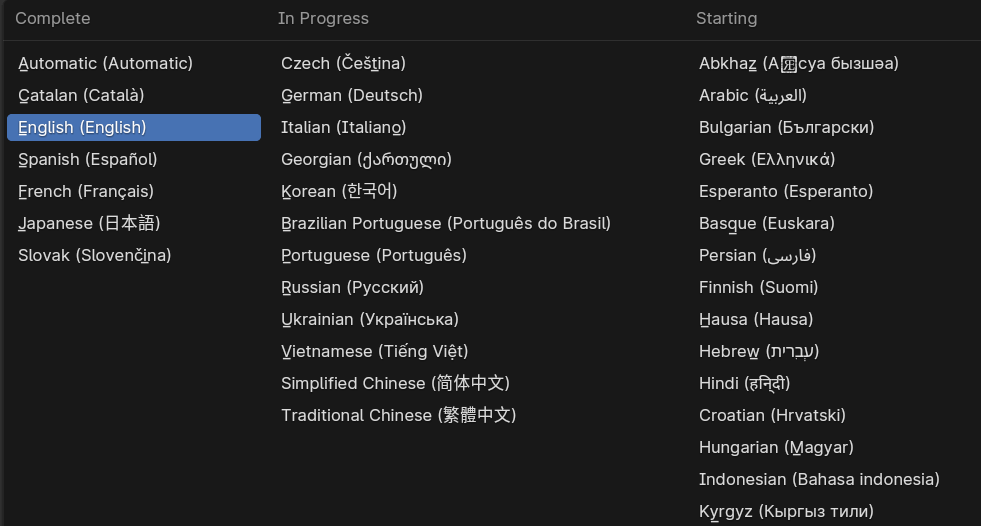
 - From there you can choose the desired language. But please note, not all languages are fully integrated and you can see a list which explains which languages are fully integrated, in progress and started.
- There is also a few check boxes below this drop-down which can change how Blender displays these translations
- Tooltips – This will show a translated tooltip when you hover your mouse over a button. This is a great way to understand what a button does
- Interface – This will translate all the buttons on the interface, but this may make it hard to follow tutorials if they are using another language
- New Data – This will also translate any new data added to the scene. For example if you add a new material it won’t say “Material.001” but rather the translated word for “Material” in whatever language you choose.
Changing the input methods in Blender for a Laptop and more #
As a beginner, familiarizing yourself with and exploring the input preferences can be beneficial. This enables you to modify shortcut keys to suit your setup, whether you’re using a smaller keyboard or working on a laptop.
Firstly, lets head over to the Input panel on the preferences window. We can see there are some keyboard, mouse and tablet inputs. Lets work down and explain what the 2 most important ones can do.
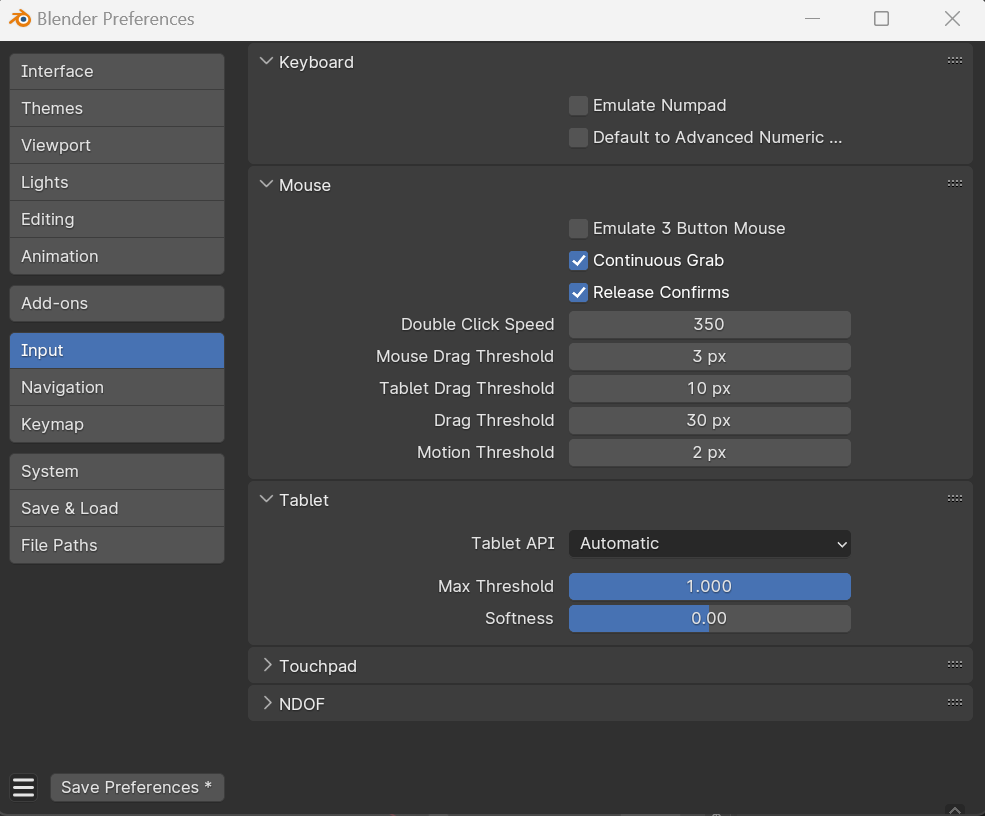
Emulate Numpad: This will let you change the shortcut keys from the dedicated number pad to the row of numbers at the top of the keyboard, if your keyboard doesn’t have a numpad
Emulate 3 Button Mouse: This is very helpful when you are using a laptop. Laptops do not have a middle mouse button or scroll wheel, so this will allow you to use the Alt+Left mouse button in place of the middle mouse wheel.
Tablet API: This will let you choose a different tablet input method for pressure sensitivity, this is dependent on the tablet you are using. Automatic will work most of the time.
NDOF Inputs: This is referring to a 3D mouse (N Degrees Of Freedom), or a special rotating wheel which is often used in 3D applications. This is quite specialized but if you have a 3D mouse and want to adjust the settings, you can find it there.
Changing shortcut keys to industry compatibles and more #
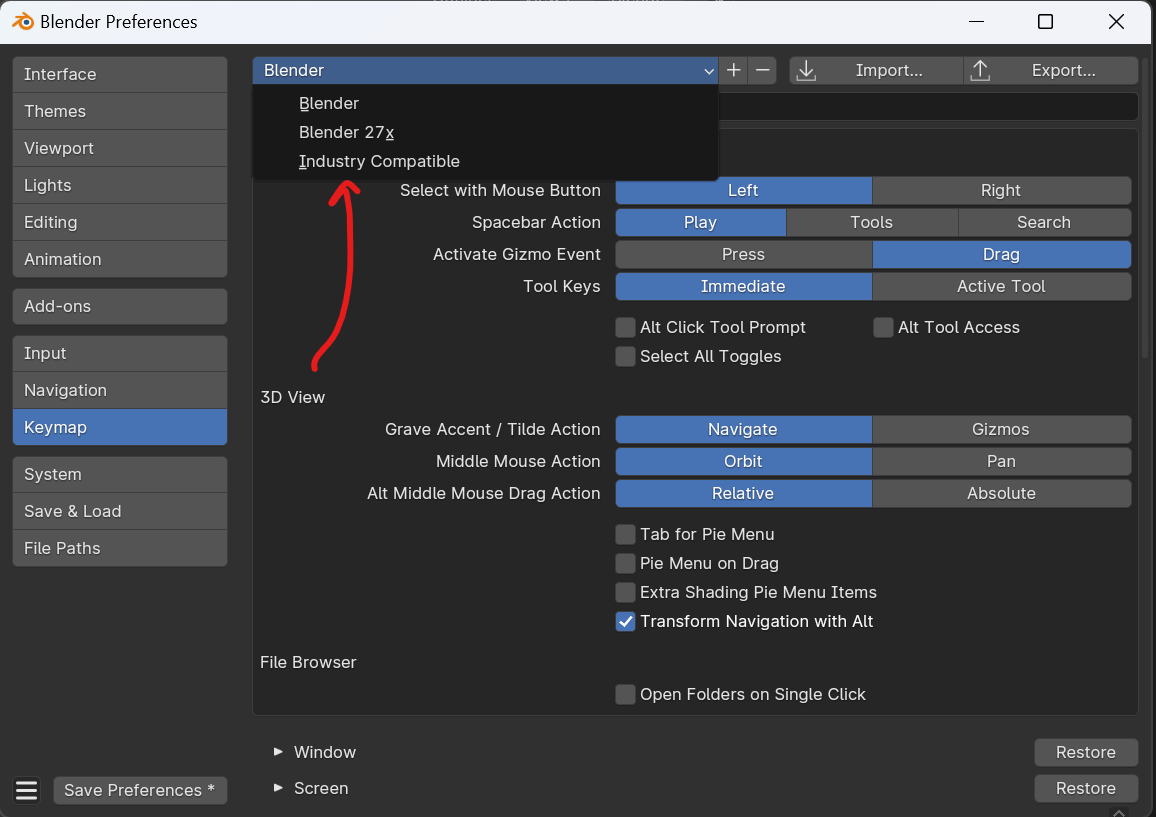
If you have come from another 3D software, or an old version of Blender, you may find the keymap is a bit different to what you are used to. I would suggest that if you are going to be continuing using Blender for your future career, then i’d recommend learning the blender keymap so you never have to change it again in the future.
If you wish to change it, you can go to Blender Preferences window, Keymap and then choose from the dropdown which keymap you would prefer, along with importing your own or modifying the current one.
Saving and Autosaving #
In the preferences panel under Save & Load, there are a few settings you may find interesting.
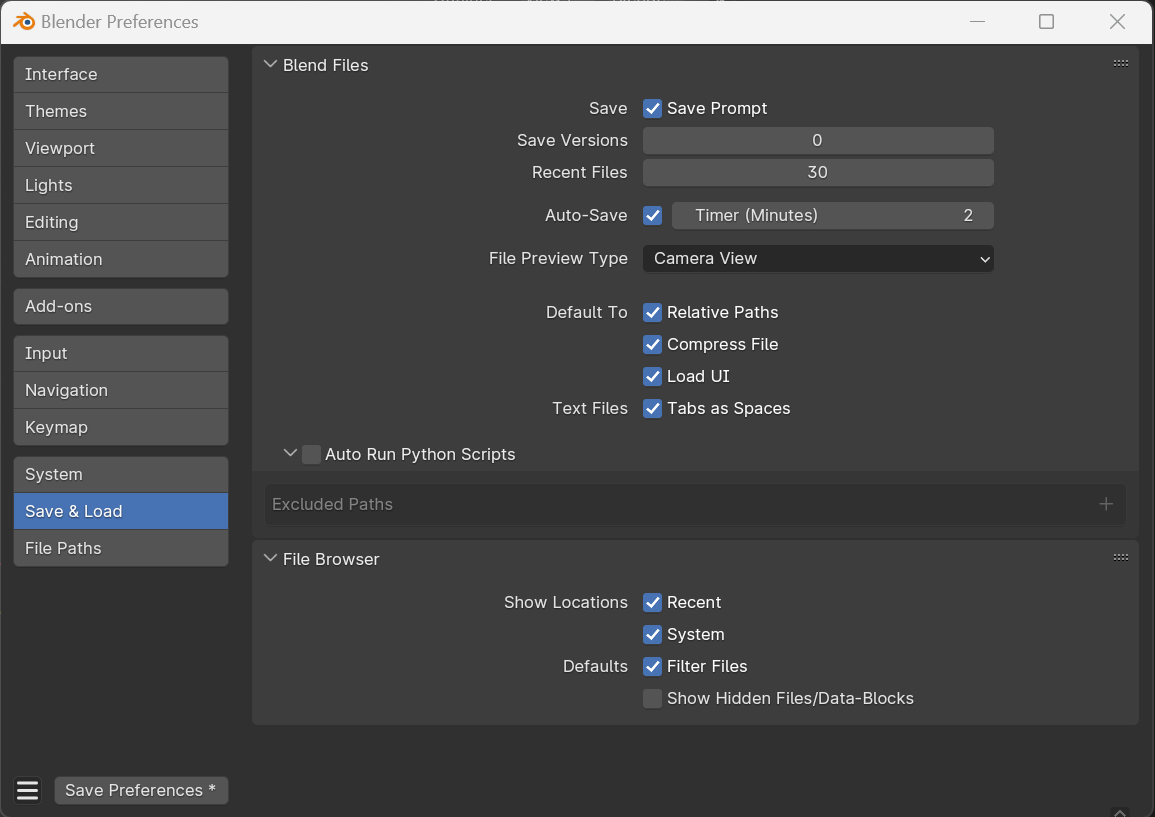
Firstly you are able to adjust how many recent files are displayed and saved into memory for when you load blender each time. The default here of is usually enough but you can enter whatever number you prefer.
The autosave timer is also very important. It is set to a default value of 2 minutes which I recommend you do not change. This can save you by always saving in the background to a temporary folder.
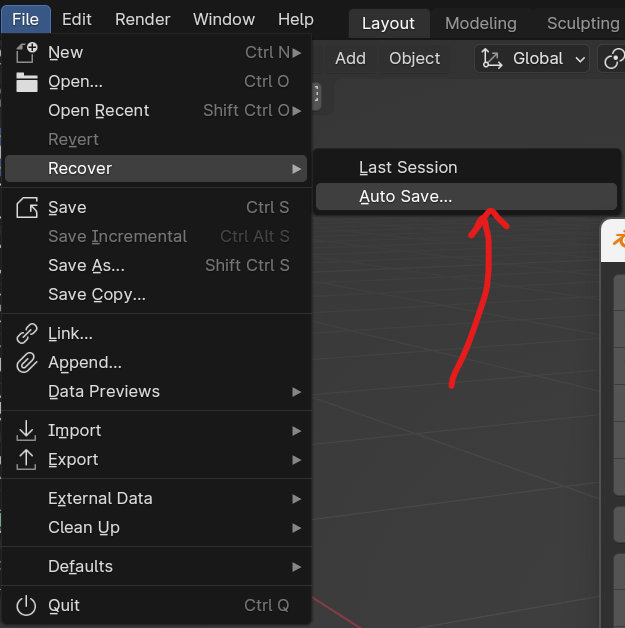
If your file crashed and you need to recover the autosave, you can do this by going to File>Recover>Auto Save
Where are blender settings? #
The blender settings are all found in the preferences panel. Here are a bunch of tools that can allow you to change how Blender works. You can set your own preferences or use other premade options such as for the keymaps.
How to set language Blender? #
The language panel can be found in the Blender Preferences panel under Edit>Preferences. Then on the tap on the left click Interface, and then go down to the Translation section where you can set the language as well as a few other options to help you understand what you are reading.
What is the 3 mouse button in blender? #
Emulate 3 Button Mouse in Blender is used to switch from the middle mouse button, or mouse wheel, to ALT+Left mouse button. This is particularly useful if you are using a laptop and do not have access to a mouse with a scroll wheel.
How do I reset Blender to default settings? #
This is very easy to reset the blender to its default settings. Simply go to File>Defaults>Load Factory Settings.
What is the default unit of Blender? #
The default units inside of Blender is not under preferences but it is rather scene specific. If for example you prefer to work in feet and not meters. Then start Blender fresh without any work, you can then go to the Scene Properties>Units>Units System and then switch from Metric to Imperial.
Once you have done this, it is advisable to go to File>Defaults>Save startup file. This way every time you load Blender you’ll always start with Imperial and Feet.